

Launching Dictation
The entry point is entirely part of your UI. You can use a toolbar action, header button, floating launcher, menu item, keyboard shortcut, or any pattern you prefer. To launch scratchpad Dictation, your code must callshow() with mode: “scratchpad” in JavaScript or mount the Dictation component in React with mode: “scratchpad”.
Managing the Dictation interface
Once the session is open, the Suki Dictation SDK displays the Dictation UI in a hosted iframe in the layout you configure. The UI includes the microphone, Close, copy-to-clipboard, and related controls. When Content Rewrite is available, clinicians can also select text with the microphone off and use the rewrite tooltip to modify the selection. Refer to Content Rewrite for more details.Requirements
Keep the following requirements in mind to ensure the interface displays correctly:- Layout: You control where the scratchpad appears (for example, a floating panel anchored to a launcher).
-
Mode: You must pass scratchpad in
show()or on<Dictation>so the SDK uses the floating UI. - Data handling: You receive transcript text through defined callbacks.
You can place the launcher anywhere in your application that fits your design. Your real layout might use a portal, column, or different spacing. These screens are only examples.
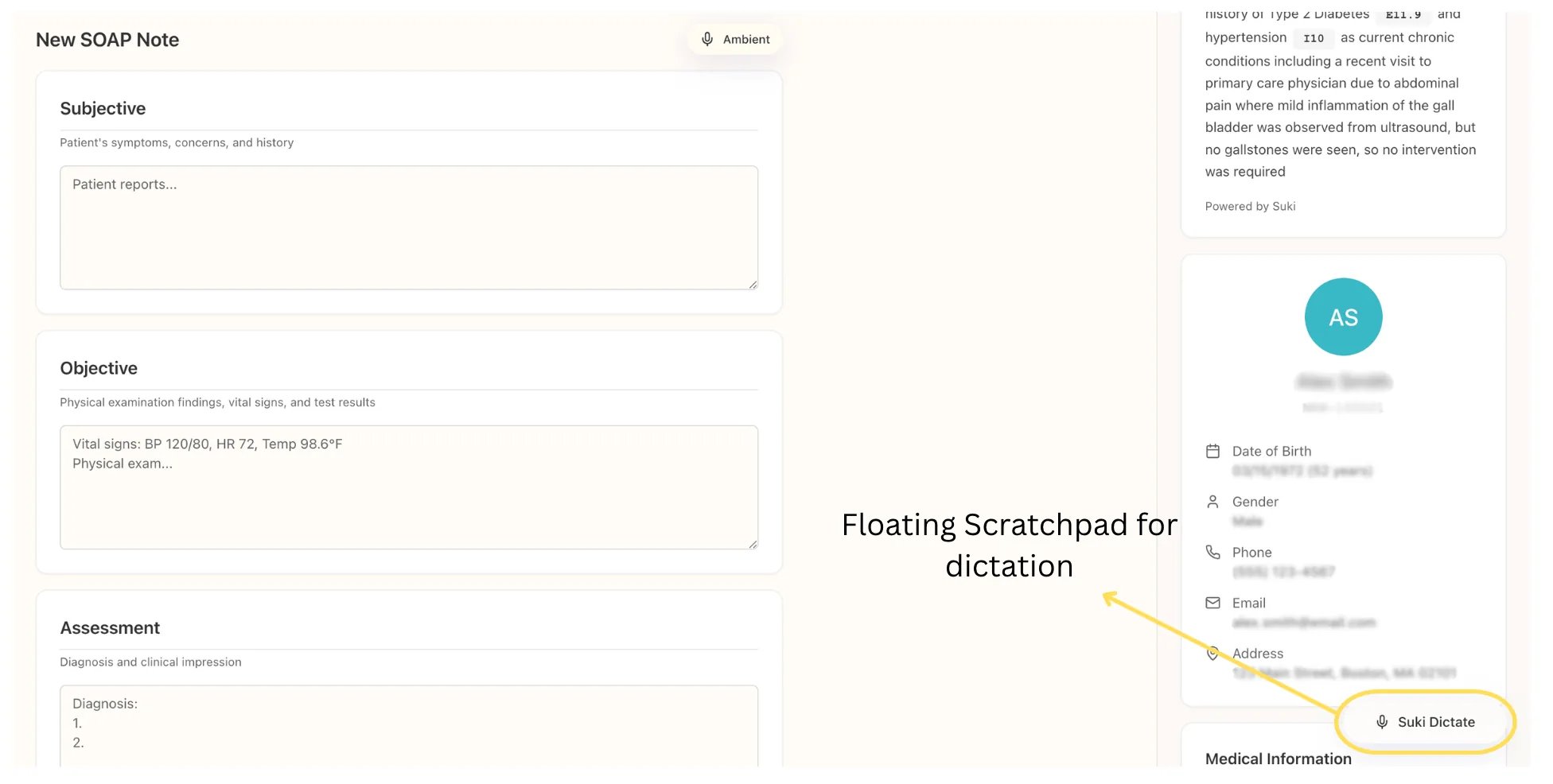
When to choose scratchpad mode
Use scratchpad mode when:- Dictation should live in its own area (side panel, overlay region, or similar), not overlaid on one field’s container.
- Users need to capture speech first and then paste or apply text elsewhere, or you want quick dictation without binding the session to a single
textarea.
How to configure scratchpad mode
For scratchpad Dictation you setmode, fieldId, and usually consider rootElement (and other ShowOptions) so the SDK knows which layout to use, where the iframe mounts, and how to label the session in callbacks.
Mode
Setmode to the string "scratchpad" so the SDK uses the floating standalone Dictation UI instead of in-field overlay.
- JavaScript: include
mode: "scratchpad"in the object you pass toDictationClient.show(). - React: set
mode="scratchpad"on<Dictation>.
Mode configuration
Root element
For scratchpad,rootElement is still the DOM node where the SDK mounts the Dictation iframe. It is usually a dedicated region of your layout (panel, column, or modal body), not a wrapper around a single clinical line item.
The hosted UI still measures the same layout box as in-field mode: rootElement should be an element with real width and height so the floating UI has room to render. If the host collapses (for example zero height in a flex or grid row, a hidden parent, or no min-height), you will usually see a blank or clipped area even though scratchpad is “floating.”
When the scratchpad region sits on top of or beside other UI, set position: relative on that host (unless you already have another positioning context) so stacking and alignment stay predictable.
Field ID
fieldId is a string you invent to name this scratchpad session. Every callback sends it back with text, which helps if you run multiple scratchpads or mix scratchpad with in-field flows. It does not have to match a DOM id.
Use a stable, unique id per scratchpad instance; a common choice is scratchpad, or a namespaced value such as scratchpad.draft
if you run more than one.
How to use scratchpad mode
You decide how users open scratchpad Dictation mode in your app. You can use a floating launcher, a toolbar action, a menu item, or any control that callsshow() with mode: "scratchpad" in JavaScript, or mounts <Dictation mode="scratchpad"> in React. Put the session in a sized host region of your layout, not on a single field.
After they open it, Suki draws the Dictation UI in the iframe: microphone, Close, copy, and the transcript area. You do not rebuild those controls yourself. You receive text through onSubmit, onCancel, and optionally onDraft, then place that text into your note, chart field, or other app state.