

What MCP server does not do
- It does not execute any product APIs on your behalf.
- It does not replace Partner Token or Suki Token authentication for those APIs.
Key benefits
Accelerate Your Development
Use the documentation as an MCP service in your AI code editor to assist coding and integration tasks.
Improve Your LLM's Responses
Retrieve information from the documentation in your AI code editor to improve response accuracy.
Reduce Manual Research
Reduce the need for manual research and documentation lookup.
Reduce LLM Hallucinations
Ground responses in current documentation instead of invented endpoints or SDK patterns.
MCP server URL
Use this URL as the custom connector endpoint:https://developer.suki.ai/.well-known/mcp (and /.well-known/mcp.json). Prefer the public URL above when you configure a client manually.
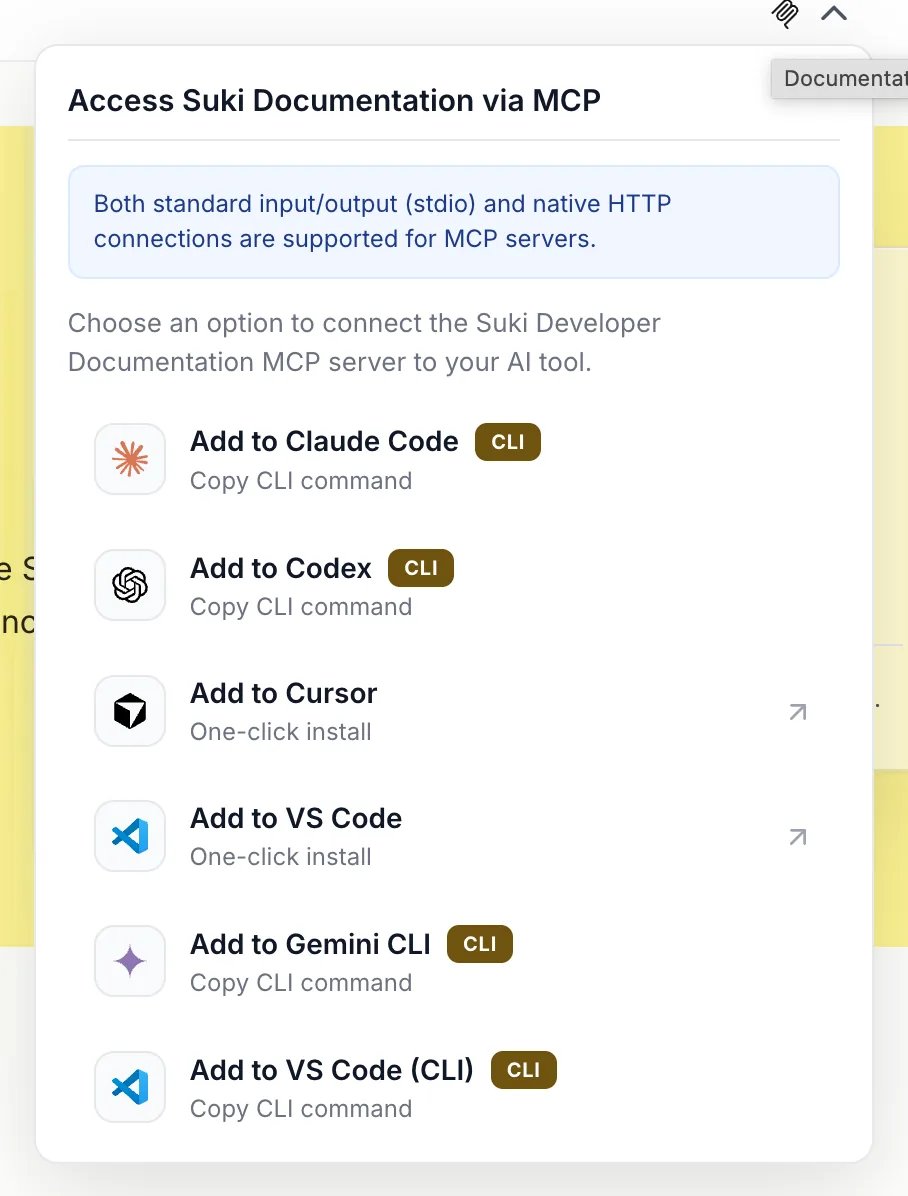
The screenshot below shows the Documentation MCP dropdown:
How the MCP server works
When an AI application connects to the Suki documentation MCP server, it can search indexed site content and retrieve full pages as Markdown while it answers your prompt. That keeps answers aligned with what is published ondeveloper.suki.ai.
- AI applications can search proactively while generating a response, even if you did not ask them to search.
- They choose which tool to call from conversation context and relevance to Suki docs.
- Each tool call runs during generation, so the model can use up-to-date documentation.
MCP server tools
Connected agents can use the following tools:- Search: Searches across the site and returns snippets with titles and links. Use this to find matching pages.
- Query docs filesystem: Reads a virtual documentation filesystem with shell-style commands (
rg,head,cat,tree, and similar). Use this to pull exact sections or full pages. - Submit feedback: Reports a page that is incorrect, outdated, confusing, or incomplete. Mintlify records that as unhelpful feedback for the docs team.
skill.md files as MCP resources for discovery. Find install commands and product prompts on AI coding tools guide.
Search parameters
Optional filters your AI tool may pass when the site supports them:Suki developer documentation is primarily a single public English site. Your AI tool decides whether to pass these filters.
How to set up MCP integration
- Cursor
- VS Code
- Claude
- Claude Code
- Codex
Open MCP Settings in Cursor
- Use Command + Shift + P on Mac or Ctrl + Shift + P on Windows to open the command palette.
- Search for Open MCP settings and select Add custom MCP. This opens
mcp.json. - Add the following configuration:
Test your connection
After configuration, ask your AI tool:Using multiple MCP servers
You can connect several MCP servers in one AI tool. Connected servers do not inject content until the model calls a search or read tool.- Connect only the servers relevant to your current work.
- Be specific in prompts so the model searches the right server.
- Disconnect servers you are not using to reduce context usage.
Troubleshooting
MCP Server Not Connecting
MCP Server Not Connecting
Verify the URL is exactly
https://developer.suki.ai/mcp. Check your internet connection and restart your AI tool after configuration.Search or Filesystem Tools Not Available
Search or Filesystem Tools Not Available
Confirm the MCP server was added correctly. Try removing and re-adding the server configuration. Check your AI tool’s MCP support documentation. Tool names can be site-specific; ask the model which tools it has after connect.
Search Returns No Results
Search Returns No Results
Try different or more general search terms (for example, “webhook” instead of “session completion webhook payload”). Verify the MCP connection is active. Hidden or
noindex pages are not available through search MCP.Rate Limit Errors
Rate Limit Errors
If the MCP server returns HTTP
429 Too Many Requests, wait and retry. Mintlify applies per-user and per-site hourly limits on search and filesystem tools. Most clients recover automatically within an hour.Next steps
AI coding tools - Skills, prompts, andnpx skills add.
AI-optimized documentation - Copy page and open-in-AI options.
Quickstart - getting-started path.